Air-Gapped AI SRE Agent: Run AURA on Your Own Local LLM
The model, the serving layer, and the agent asking questions all sit on local hardware. The first thing it debugs is the AI stack it is running on.
- Learn more about AURA → https://www.mezmo.com/aura
- Get started today → https://github.com/mezmo/aura
- Get deployment help→ https://www.mezmo.com/contact
No external inference provider in the path. Start with a model close to the frontier and a little above 30B: Qwen 3.6 or 3.8 27B, Qwen 3.6 or 3.8 35B A3B, Gemma 4 31B or 26B A4B, or GLM 4.7 30B A3B.
For serving it, llama.cpp or LM Studio over Ollama. Ollama is compatible, but it does not give you the control you want starting out. Either of the first two works through AURA's OpenAI provider, which already carries the reasoning settings the model needs.
Point the provider at your host and port, then reference the model by alias rather than inlining every argument. Arguments that do have to go on the request belong in agent.llm.additional_params. On the llama.cpp side the settings live in an INI file, and the ones shown here are sized for 24 gigs of VRAM.
The config in this video is built for research plus probing a large Compose stack for debugging and general health. The run at the end points the AURA CLI at a local homelab server.
AURA reads and reports here. It returns a diagnosis and does not act on the environment. This video also does not cover installing or running llama.cpp itself.
Chapters
0:00 Air-gapped AURA against a local model
0:11 Picking a model: 30B and up
0:46 The AURA config
0:59 llama.cpp and LM Studio over Ollama
1:19 Running through the OpenAI provider
1:35 Host, port, and configuring the model by alias
2:03 The llama.cpp config and 24 gigs of VRAM
2:36 AURA diagnosing its own AI stack
#AISREAgent #LocalLLM #AirGapped
[agent.llm]
provider = "openai"
api_key = "no-key-needed"
base_url = "http://{{ env.LLAMA_HOST }}:11435/v1"
model = "qwen36-27b-max"
temperature = 0.3
Transcript
Air-gapped AURA against a local model
0:00 Let's see what it takes to deploy an air-gapped AURA against a local LLM or another self-hosted LLM option.
Picking a model: 30B and up
0:11 For the best possible results, I recommend starting with at least a 30B-ish size model. Qwen 3.6 or 3.8 27B is great. Qwen 3.6 or 3.8 35B A3B. Gemma 4 31B or 26B A4B, or GLM 4.7 30B A3B, all great models. As long as you're picking something that is pretty close to the frontier and a little bit above that 30B weight, you're going to have a pretty good time debugging complex tasks with AURA. So let's take a look and see how it's configured.
The AURA config
0:46 If you notice here, I have an AURA config. This config happens to be oriented around doing research as well as probing at a large Compose stack for debugging and just general health.
llama.cpp and LM Studio over Ollama
0:59 What you're going to want to do is if you're connecting to a local model, first off, I would recommend running either llama.cpp or LM Studio over Ollama. Overall, they're going to be much more reliable and you're just going to have better results. Ollama doesn't have quite the control that you're going to want to start off with, but it's definitely compatible.
Running through the OpenAI provider
1:19 For running either LM Studio or llama.cpp, you're actually going to be totally fine using our OpenAI provider. It's already set up with the proper reasoning stuff and everything that you need to run that model properly.
Host, port, and configuring the model by alias
1:35 So you want to take note of your host, your port, everything that you're running at. And something kind of interesting: local models have a lot of tweaking. I'd highly recommend configuring it with an alias rather than putting all the arguments here. But if you do want to use the arguments, you can actually use our agent.llm.additional_params config from our docs here as well. So let's go and write this and take a look at the config file that I pulled this from.
The llama.cpp config and 24 gigs of VRAM
2:03 So what you're looking at now, this is my llama.cpp config. It allows you to set an INI that has a lot of these tweaky details set here for you. The tutorial really doesn't go over how to run llama.cpp, but just keep in mind that my settings here are essentially what's appropriate for running these models on 24 gigs of VRAM, which happens to be what I have. So let's go ahead and take a look and see what we have going here.
AURA diagnosing its own AI stack
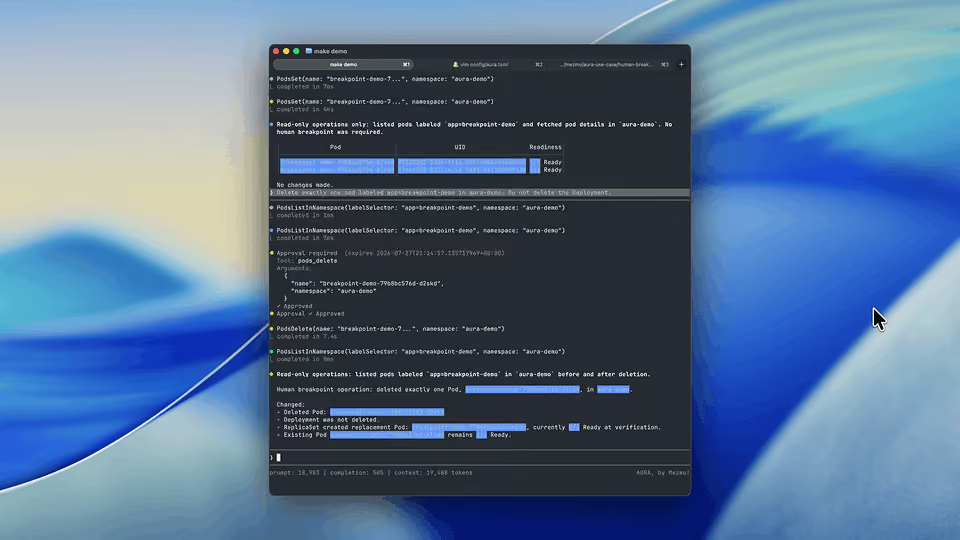
2:36 So we have our AURA CLI spun up. You notice it's pointing to my local homelab server. Let's go ahead and see what it can tell us about the AI stack.
And there you have it, local AURA running on and diagnosing its own AI stack.
More videos