The Mezmo blog
Browse by topic
Active Telemetry
Active Telemetry
Agentic Observability
Agentic Observability
AI Agent Infrastructure
AI Agent Infrastructure
Alerting & Incident Response
Alerting & Incident Response
AURA
AURA
Context Engineering
Context Engineering
Integrations
Integrations
Observability Cost Control
Observability Cost Control
Observability Strategy
Observability Strategy
OpenTelemetry (OTel)
OpenTelemetry (OTel)
Platform Observability
Platform Observability
Production AI Observability
Production AI Observability
Root Cause Analysis
Root Cause Analysis
Security & Compliance
Security & Compliance
Site Reliability Engineering (SRE)
Site Reliability Engineering (SRE)
Telemetry for AI Agents
Telemetry for AI Agents
Telemetry Pipeline
Telemetry Pipeline
Thought Leadership
Thought Leadership
Recent posts
Where Jev fits in ops
Where Jev fits in ops
Explore how Jev's structured decision models can help SRE teams evaluate evidence, choose next steps, and build more reliable autonomous operations.
The pager shouldn't be what starts the investigation
The pager shouldn't be what starts the investigation
A Mezmo AI Investigation is a root cause analysis record AURA produces when a Pipeline node alert fires, with evidence, a confidence score, and a root cause.

From alert to answer: a hands-on investigation with trace analysis in Mezmo
From alert to answer: a hands-on investigation with trace analysis in Mezmo
Walk through OpenTelemetry trace analysis in Mezmo, from service maps and anomalous traces to AI-powered investigations and root cause analysis.
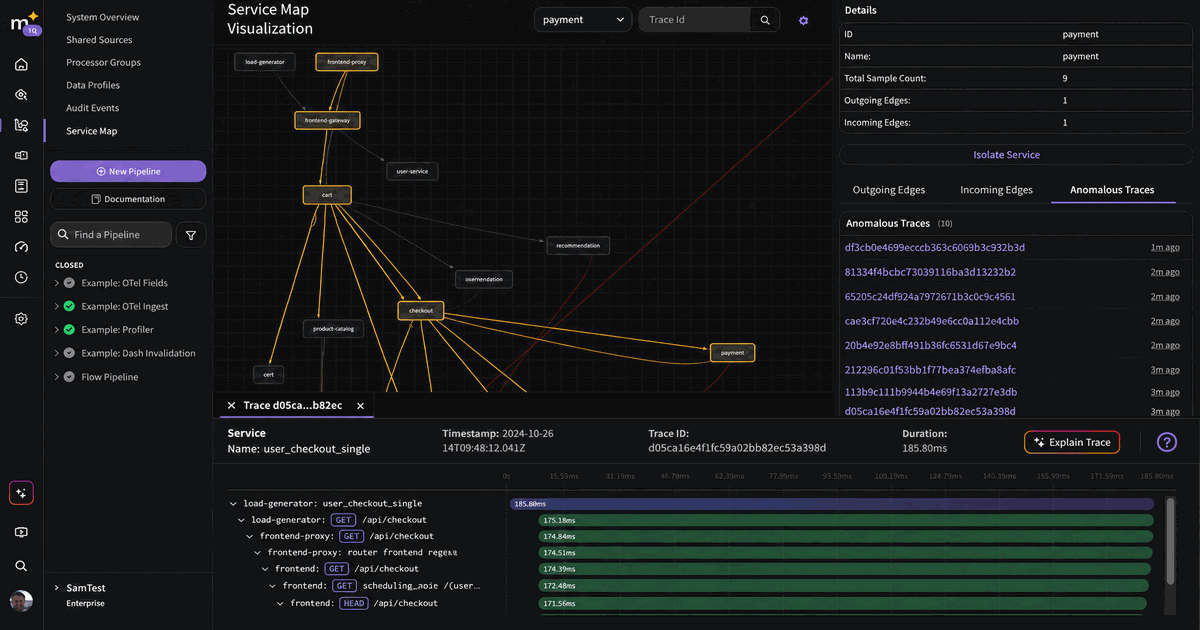
What an AI SRE agent actually finds when you point it at a broken Kubernetes cluster
What an AI SRE agent actually finds when you point it at a broken Kubernetes cluster
Build a working AI SRE agent that investigates Kubernetes incidents using real cluster state and Prometheus metrics, with least-privilege tool access.

Builder in the loop: what production agents were missing before AURA
Builder in the loop: what production agents were missing before AURA
AURA engineer Mike Shearer explains why production agents need persistent context, server-side execution, orchestration, and measurable evaluation.
.avif)
5 Things to Know About Context Engineering
5 Things to Know About Context Engineering
Context engineering helps SREs and AI agents reason over telemetry by designing structure, lineage, and intent into every signal for modern operations.

An SRE agent for production
An SRE agent for production
AURA is Mezmo's open-source SRE agent that runs in your infrastructure to investigate incidents, ground findings in real telemetry, and keep actions reviewable

Builder in the loop: Tony Rogers on stress-testing AURA before production
Builder in the loop: Tony Rogers on stress-testing AURA before production
Tony Rogers explains how Mezmo tests AURA with internal benchmarks, trace inspection, and workflow validation to make agentic SRE reliable before production
.avif)
Builder in the loop: Eric Lake on making AURA smarter after every incident
Builder in the loop: Eric Lake on making AURA smarter after every incident
Mezmo SRE Eric Lake connected AURA to GitHub runbooks via MCP, auto-generates missing ones, and stores investigation memory across incidents.
.avif)
Why SRE agents need orchestration, not just more tools
Why SRE agents need orchestration, not just more tools
Single SRE agents hit a ceiling fast. See how AURA's orchestration mode routes work across scoped agents to cut tool overload and context confusion.

When your agents hallucinate at 2 AM, it is not a model problem
When your agents hallucinate at 2 AM, it is not a model problem
Context engineering is the deliberate design of telemetry, metadata, and feedback loops so AI agents reason accurately over production systems during incidents

Builder in the loop: Henry Andrews on building AURA like production software
Builder in the loop: Henry Andrews on building AURA like production software
Mezmo PM Henry Andrews on why AURA uses Rust, TOML configs, and OpenTelemetry to make MCP-native agent workflows inspectable and production-ready for SRE teams.

We built an SRE bot on AURA. Here's what we learned.
We built an SRE bot on AURA. Here's what we learned.
We put AURA behind a Slack bot, connected it to PagerDuty, Prometheus, and Mezmo via MCP, and pointed it at our own production environment. Here's what worked.
The journey to production AI: Five steps for SRE and platform teams
The journey to production AI: Five steps for SRE and platform teams
56% of teams have zero agents in production. The five steps that move SREs and platform engineers from agent demo to autonomous ops with AURA and Mezmo.

The runbook problem: How AURA documents what teams don’t have time to write
The runbook problem: How AURA documents what teams don’t have time to write
Learn how AURA helps SRE and platform teams turn incident investigations into draft runbooks using grounded context, MCP tools, and human review.

AURA in practice: real-world use cases for production AI agent infrastructure
AURA in practice: real-world use cases for production AI agent infrastructure
Explore six production use cases for AURA, Mezmo's open-source, MCP-native agent harness, from drop-in chat agents to runbook-grounded RCA.

Why we open-sourced AURA: Infrastructure for production AI
Why we open-sourced AURA: Infrastructure for production AI
AURA was built to be an open-source standard for production AI, designed to connect your models so you can trust what you see.
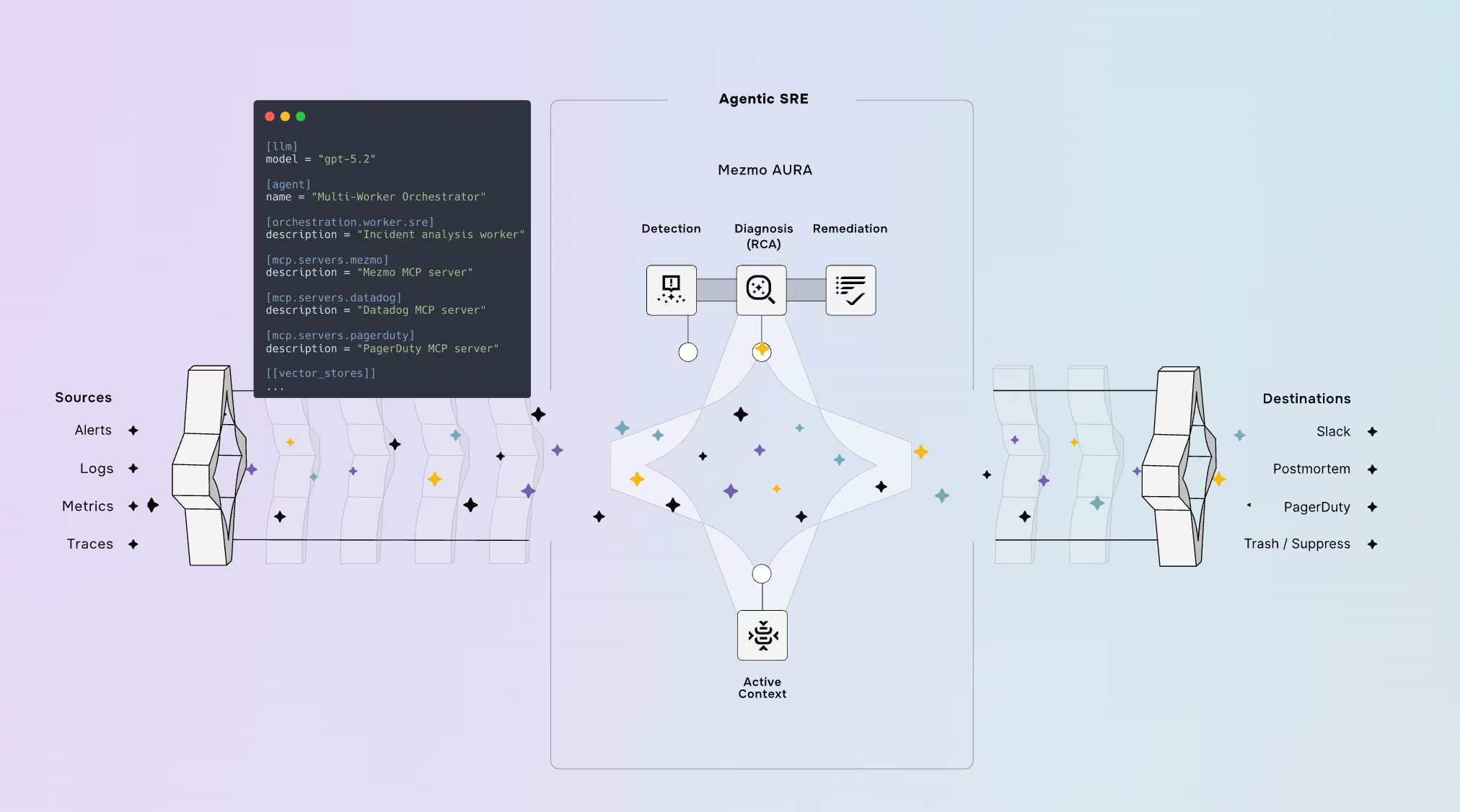
Life after SaaS: Enabling the System of Context
Life after SaaS: Enabling the System of Context
SaaS is changing for the better. Now, organizations can build, deploy, and scale faster than ever — it’s our job to provide the System of Context.
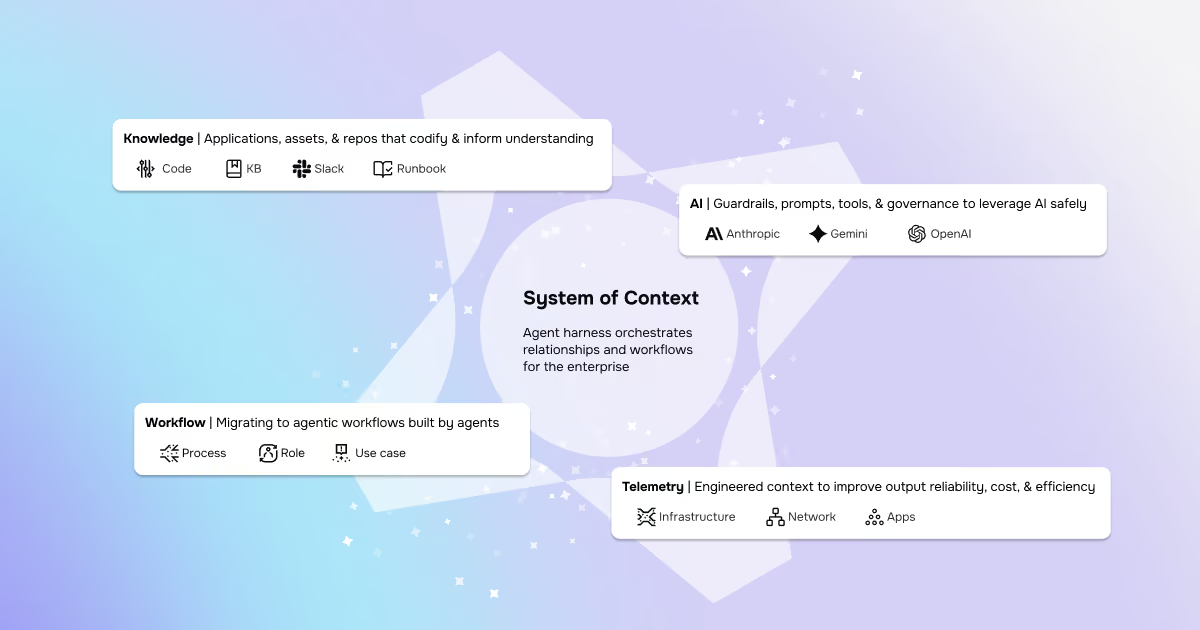
The Grok-to-AI evolution: Why modern SREs are moving beyond manual parsing
The Grok-to-AI evolution: Why modern SREs are moving beyond manual parsing
Grok Patterns are reactive. Real evolution is shifting from manual parsing to AI-assisted systems for improved understanding and observability.

Take back control of your observability spend
Take back control of your observability spend
Take back the power and control of your observability strategy. With OpenTelemetry and Mezmo, break free from vendor lock-in and cut your costs today.

AI SRE update: Your feedback shaped our latest release
AI SRE update: Your feedback shaped our latest release
The latest Mezmo AI SRE update adds streaming progress, log aggregation, and visualization tools to make observability faster and more intuitive.
.avif)
Simplify the collection layer and move to OTel without the agent sprawl
Simplify the collection layer and move to OTel without the agent sprawl
Don’t let legacy agents cause problems during your OpenTelemetry migration. Mezmo makes migrating to OpenTelemetry and unlocking the true potential of AI easy.

The Observability stack is collapsing: Why context-first data is the only path to AI-powered root cause analysis
The Observability stack is collapsing: Why context-first data is the only path to AI-powered root cause analysis
More dashboards haven't cut MTTR. See why context-first data is the only path to AI-powered root cause analysis that lowers tokens and cost.

Mezmo + Catchpoint deliver observability SREs can rely on
Mezmo + Catchpoint deliver observability SREs can rely on
Mezmo and Catchpoint pair internal telemetry with external performance insight and agentic SRE analysis to surface real root causes and shrink MTTR.

Mezmo’s AI-powered site reliability engineering (SRE) agent for root cause analysis (RCA)
Mezmo’s AI-powered site reliability engineering (SRE) agent for root cause analysis (RCA)
Mezmo's new AI SRE agent is here. Get instant root cause analysis, 90% faster MTTR, and proactive observability, included in your subscription at no extra cost.

What is Active Telemetry
What is Active Telemetry
Active Telemetry turns logs, metrics, and traces into AI ready signals in real time to cut noise, reduce spend, speed MTTR, and enable agentic ops.

Launching an agentic SRE for root cause analysis
Launching an agentic SRE for root cause analysis
Mezmo’s AI SRE delivers root cause analysis fast with agentic workflows, Active Telemetry, and an MCP Server, cutting costs by 90% and MTTR by up to 80%.

Paving the way for a new era: Mezmo's Active Telemetry
Paving the way for a new era: Mezmo's Active Telemetry
Discover Mezmo's Active Telemetry—a proactive approach that delivers real-time, high-fidelity data developers, SREs, and AI agents need to move faster.

The answer to SRE agent failures: Context Engineering
The answer to SRE agent failures: Context Engineering
AI SRE agents overpromise but underdeliver due to missing context. Learn why raw telemetry breaks them — and how Mezmo’s Context Engine fixes it

Empowering an MCP server with a telemetry pipeline
Empowering an MCP server with a telemetry pipeline
AI agents are only as good as their context. Learn how Mezmo's telemetry pipeline supplies the real-time data that powers AI-driven observability.

The debugging bottleneck: A manual log-sifting expedition
The debugging bottleneck: A manual log-sifting expedition
Skip the manual log hunt. The Mezmo MCP Server delivers context-rich data to AI agents, enabling instant root cause analysis and proactive workflows.

The smartest member of your developer ecosystem: Introducing the Mezmo MCP server
The smartest member of your developer ecosystem: Introducing the Mezmo MCP server
Eliminate tool friction and boost productivity. The Mezmo MCP Server delivers seamless access to observability data across your dev ecosystem.

Your new AI assistant for a smarter workflow
Your new AI assistant for a smarter workflow
Boost efficiency with Mezmo’s new AI chatbot. Get instant answers, context-aware help for pipelines, and smarter workflows, all directly in the platform.
The observability problem isn't data volume anymore—It's Context
The observability problem isn't data volume anymore—It's Context
Engineering teams don’t need more telemetry data. Discover how Mezmo’s MCP Server brings AI-ready context to observability and accelerates root cause analysis.
Beyond the pipeline: Data isn't oil, it's power
Beyond the pipeline: Data isn't oil, it's power
It’s time to ditch the oil analogy. Discover why modern data infrastructure looks more like a dynamic power grid than a pipeline, and what that means for SREs.

The platform engineer's playbook: Mastering OpenTelemetry & compliance with Mezmo and Dynatrace
The platform engineer's playbook: Mastering OpenTelemetry & compliance with Mezmo and Dynatrace
Learn how Mezmo helps platform teams streamline OpenTelemetry, manage compliance, and cut observability costs in Dynatrace, all from one control plane.
.avif)
From alert to answer in seconds: Accelerating incident response in Dynatrace
From alert to answer in seconds: Accelerating incident response in Dynatrace
Cut MTTR by replaying full-fidelity logs on demand. Learn how Mezmo + Dynatrace accelerate root cause analysis with real-time data and zero delay.

Taming Your Dynatrace bill: How to cut observability costs, not visibility
Taming Your Dynatrace bill: How to cut observability costs, not visibility
Learn how Mezmo helps reduce your Dynatrace bill by filtering noisy logs, managing cardinality, and sending only high-value data to the platform.

Architecting for value: A playbook for sustainable observability
Architecting for value: A playbook for sustainable observability
Learn how to reduce observability costs without sacrificing visibility. Explore four key cost drivers and how Mezmo helps teams take control.

How to cut observability costs with synthetic monitoring and responsive pipelines
How to cut observability costs with synthetic monitoring and responsive pipelines
Most teams still collect everything, all the time. Learn how synthetic monitoring can trigger responsive telemetry pipelines to cut cost and noise.

The inconvenient truth about AI ethics in observability
The inconvenient truth about AI ethics in observability
Your AI is only as ethical as your data. Learn why messy telemetry creates bias, and how to build trust with transparency, security, and human oversight.

Observability's Moneyball moment: How AI is changing the game (not ending it)
Observability's Moneyball moment: How AI is changing the game (not ending it)
Observability is evolving, not ending. Learn how AI-first pipelines cut costs, speed insights, and transform ops into a strategic advantage.

Top five reasons telemetry pipelines should be on every engineer’s radar
Top five reasons telemetry pipelines should be on every engineer’s radar
From cost control to real-time insights, telemetry pipelines help engineers cut noise, enrich data, and build smarter observability into every tool.

Is it a cup or a pot? Helping you pinpoint the problem—and sleep through the night
Is it a cup or a pot? Helping you pinpoint the problem—and sleep through the night
Mezmo filters noise, enriches logs, and pinpoints root causes fast—so you can resolve incidents quickly and avoid sleepless nights.

Smarter telemetry pipelines: Control costs, reduce noise, and get ready for agentic operations
Smarter telemetry pipelines: Control costs, reduce noise, and get ready for agentic operations
Observability costs start upstream in your pipeline. Learn how smarter telemetry pipelines cut data volume and noise, and ready you for agentic ops.

Telemetry for modern apps: Reducing MTTR with smarter signals
Telemetry for modern apps: Reducing MTTR with smarter signals
Why modern telemetry stacks miss the mark on MTTR, and how smarter signals plus synthetic monitoring help teams detect, debug, and resolve faster.

Transforming observability: Simpler, smarter, and more affordable data control
Transforming observability: Simpler, smarter, and more affordable data control
Mezmo’s new pricing model simplifies observability, reduces costs, and gives teams full control over how they process, analyze, and retain telemetry data.

Datadog: The Good, The Bad, The Costly
Datadog: The Good, The Bad, The Costly
Struggling with rising Datadog costs? Learn smart Datadog cost optimization strategies to reduce log ingestion and keep value high without vendor lock-in.

Reducing Telemetry Toil with Rapid Pipelining
Reducing Telemetry Toil with Rapid Pipelining
Telemetry toil and data overload slow teams down. Learn why rapid pipelining and early data processing outperform retention policies for observability.

Webinar Recap: Telemetry Pipeline 101
Webinar Recap: Telemetry Pipeline 101
Telemetry Pipeline 101: what makes a good pipeline, why it matters for DevOps, and how it cuts data bloat so you get insight without the budget burn.

Key Takeaways from the 2024 DORA Report
Key Takeaways from the 2024 DORA Report
Explore the 2024 DORA Report's insights on DevOps performance metrics and the nuanced impact of AI on software delivery.
What are SLOs/SLIs/SLAs?
What are SLOs/SLIs/SLAs?
Learn the differences between SLOs, SLAs, and SLIs, and how Mezmo helps optimize system performance for reliability, compliance, and operational success.

How Data Profiling Can Reduce Burnout
How Data Profiling Can Reduce Burnout
Learn how data profiling can combat burnout by streamlining telemetry data analysis, reduce mental toil, and focus on critical projects.

OpenTelemetry: The Key To Unified Telemetry Data
OpenTelemetry: The Key To Unified Telemetry Data
Unlock the full potential of OpenTelemetry (OTel) with Mezmo by simplifying Telemetry data collection and enhanced system monitoring.

Open-source Telemetry Pipelines: An Overview
Open-source Telemetry Pipelines: An Overview
Learn more about open-source telemetry pipeline solutions, their common use cases, and how Mezmo’s offering stands out from the crowd.

Using Vector to Build a Telemetry Pipeline Solution
Using Vector to Build a Telemetry Pipeline Solution
Discover how Mezmo leverages Vector's capabilities to enhance telemetry data management, ensuring efficient data collection and actionable insights.

Introducing Mezmo Edge: A Secure Approach To Telemetry Data
Introducing Mezmo Edge: A Secure Approach To Telemetry Data
For teams working with sensitive medical or financial data, Mezmo Edge processes telemetry in your own environment to meet PCI, GDPR, and CCPA needs.

Unearthing Gold: Deriving Metrics from Logs with Mezmo Telemetry Pipeline
Unearthing Gold: Deriving Metrics from Logs with Mezmo Telemetry Pipeline
Separate signal from noise: learn how to derive valuable metrics from logs with the Mezmo Telemetry Pipeline for clearer, data-driven decisions.

Data-Driven Decision Making: Leveraging Metrics and Logs-to-Metrics Processors
Data-Driven Decision Making: Leveraging Metrics and Logs-to-Metrics Processors
Metrics and log-to-metrics processors can play a crucial role in an organization’s decision-making process when analyzing its data.

6 Steps to Implementing a Telemetry Pipeline
6 Steps to Implementing a Telemetry Pipeline
Organizations can gather, process, and enhance the value of their data with these six steps to implement a telemetry pipeline.
Observability Pipelines for an SRE
Observability Pipelines for an SRE
Observability pipelines make SRE lives easier by enabling better management, value, and insights from data for less cost.

Kubecon 2022: Industry Insights on Observability Data
Kubecon 2022: Industry Insights on Observability Data
At KubeCon 2022, we received some key industry insights on observability data, and the results were enlightening. Check out what we found.
Choosing an Observability Pipeline
Choosing an Observability Pipeline
Observability Pipelines centralize your telemetry data for transformation, correlation, and routing for teams. Here's how to find the one that meets your needs.
How Telemetry Pipelines Save Your Budget
How Telemetry Pipelines Save Your Budget
Telemetry pipelines save more than time. See how they keep observability costs down even as your organization generates ever more data.

Introducing the Mezmo Exporter for OpenTelemetry
Introducing the Mezmo Exporter for OpenTelemetry
Introducing Mezmo for OpenTelemetry: Reduce your MTTD and MTTR by making log data more actionable through the power of Mezmo and OpenTelemetry.
What is an Observability Data or Telemetry Data Pipeline?
What is an Observability Data or Telemetry Data Pipeline?
Learn the basics of observability data and the need for an observability data pipeline to centralize and enrich your data.
5 Observability Metrics To Monitor In Logs
5 Observability Metrics To Monitor In Logs
Log data is a pillar of observability — understand 5 of the top metrics for DevOps teams to monitor in order to achieve true observability.
Top Kubernetes Metrics & Logs for End-to-End Log Monitoring
Top Kubernetes Metrics & Logs for End-to-End Log Monitoring
Which Kubernetes signals matter most? A guide to the top Kubernetes metrics and logs you need for true end-to-end monitoring of your clusters.
Log Alerts & Log Monitoring: Best Practices
Log Alerts & Log Monitoring: Best Practices
Log alerts allow organizations to gain insight into critical events like server warnings, performance loss, and business insight necessary for productivity.

12 Splunk Alternatives For Faster Observability In 2023
12 Splunk Alternatives For Faster Observability In 2023
Splunk promises one-stop observability, but cost, complex setup, and speed hold it back. Compare 12 alternatives on features, scale, and price.
DevOps Observability: The Evolution of Logging, Monitoring and Metrics (Webinar)
DevOps Observability: The Evolution of Logging, Monitoring and Metrics (Webinar)
As organizations evolve, so do their data needs. How they log, monitor, and use metrics evolves as well, changing the future of DevOps observability.
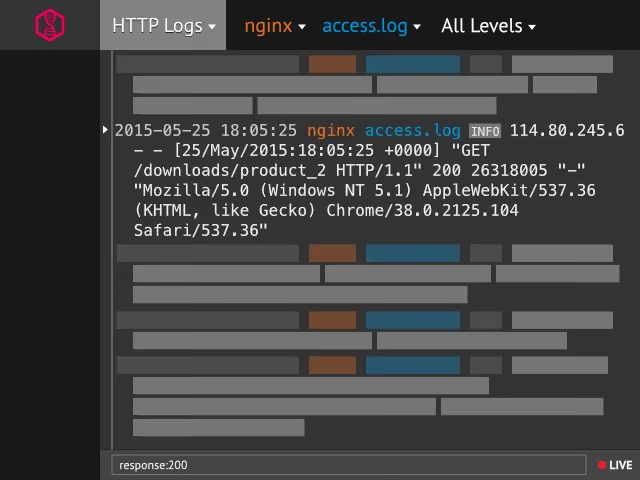
Kibana vs Grafana vs Prometheus vs Mezmo
Kibana vs Grafana vs Prometheus vs Mezmo
Compare Kibana, Grafana, Prometheus, and Mezmo as data visualization tools, and learn which fits your monitoring, troubleshooting, and security needs.

The True Cost of the Elastic Stack: An Infographic
The True Cost of the Elastic Stack: An Infographic
Elastic Stack can be a free solution, but that doesn't mean it won't cost your organization. When scaled, the costs can rise immensely.